 Chain Bridge

Contents
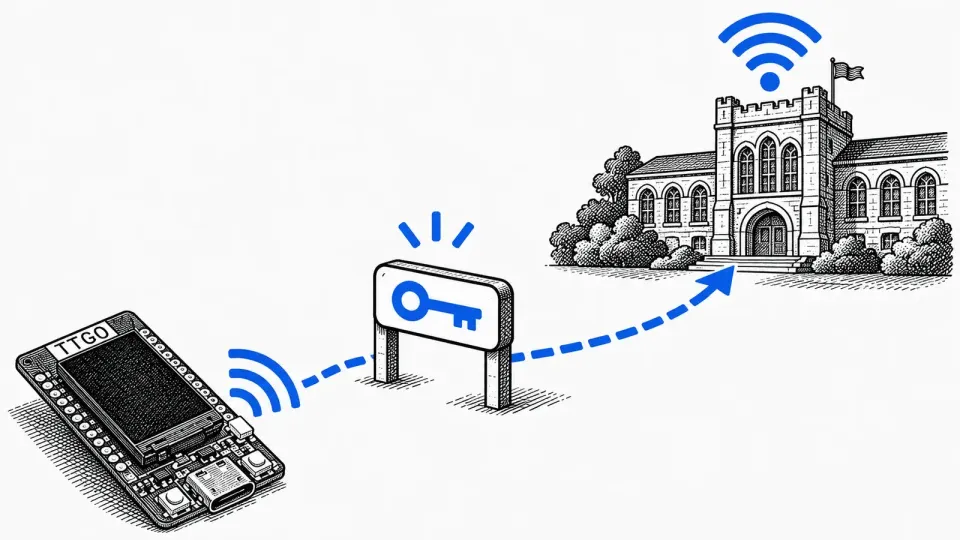
For a NerdMiner running the original NerdMiner_v2 firmware, start by asking campus IT for an approved 2.4 GHz device network with a compatible Wi-Fi password. Its normal setup form won't complete a university's browser sign-in or configure eduroam's enterprise credentials. If no suitable campus connection is available, a permitted cellular hotspot is a separate option; resetting the miner won't change the campus authentication system.
Identify the network before changing the miner
I'd check the network's sign-in method before trying another password. A laptop joining successfully doesn't establish that a small Wi-Fi device can authenticate the same way. Ask IT whether personal mining devices are allowed, then identify the connection they approve.
| Network offered | Decision before setup |
|---|---|
| A device or IoT network with an issued Wi-Fi key | Confirm 2.4 GHz, compatible security, any device registration and permission to reach the pool. |
| eduroam or another WPA-Enterprise network | The ordinary NerdMiner form doesn't supply an EAP identity or certificate setup. Ask for a supported device-network alternative. |
| A guest network that opens a web page | The miner can't click through that sign-in. Ask IT about an approved connection for devices without a browser. |
Campus names alone don't settle this. Stanford's visitor-network instructions, for example, describe a browser acceptance page and restrict the visitor service to particular applications. Its main Wi-Fi service page separately describes device registration. Those are examples of different access conditions, not a promise that your university offers a NerdMiner-compatible network.
Separate ESP32 capability from installed firmware
The ESP32-S3 Wi-Fi documentation supports enterprise authentication using EAP methods and the required identity or certificates. That hardware capability doesn't add those settings to every application built for the chip.
The original project's V1.8.3 Wi-Fi configuration code uses WiFiManager with the usual network setup and mining fields. It doesn't provide the enterprise enrollment controls described above. Don't put a campus account password into a pool-password field or expect a university username appended to the SSID to enable eduroam.
Check the firmware name as well as the case label. Vendor forks and NMMiner can have different forms and capabilities. Use the maker's instructions for the installed software; a generic ESP32 enterprise example isn't a ready-made NerdMiner update. The firmware identification guide explains the board and software checks before changing a working installation.
Configure the connection IT has approved
Once IT confirms a suitable network, follow the original project's configuration sequence. On the standard setup, join NerdMinerAP using MineYourCoins; seller settings may differ. Open the configuration page, using 192.168.4.1 if it doesn't appear, and choose Configure Wi-Fi.
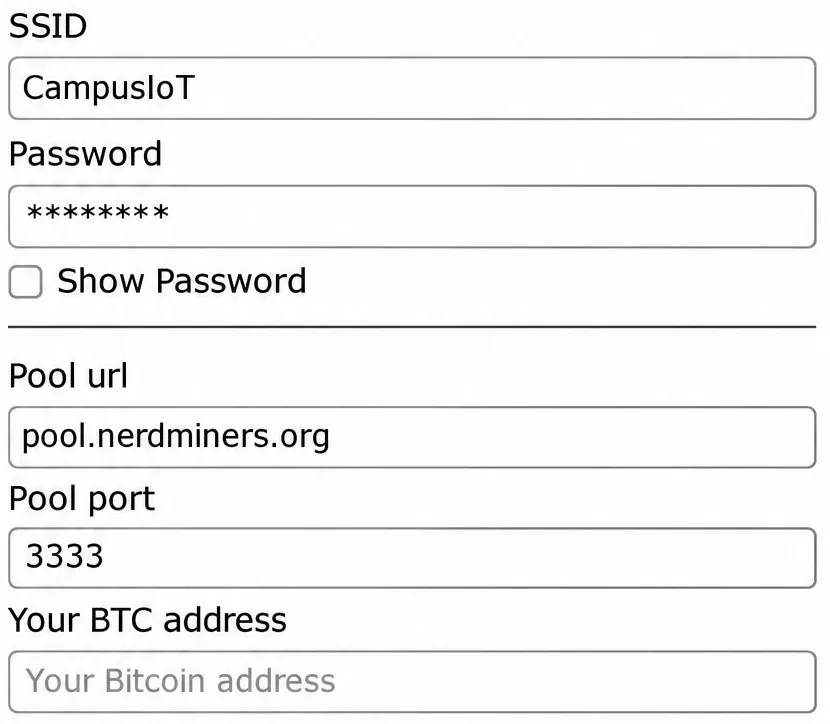
Enter the approved SSID and its Wi-Fi key. Keep the pool hostname and port in their separate fields, then enter a public Bitcoin receiving address you control. A seed phrase or private key never belongs in this form. Save, let the device reconnect and return your phone to its usual network. The first-setup guide covers the complete mining configuration without assuming campus access.
If registration is required, ask IT which device identifier it needs. In builds exposing WiFiManager's Info page, use the station MAC for the interface joining campus Wi-Fi, rather than the AP MAC for the miner's setup hotspot. The library's information-page code keeps those two identifiers separate. If your build hides that page, ask its maker for the station MAC; don't register your laptop or copy another device's identity.
Check Wi-Fi access and pool access separately
Returning to the setup network points first toward saved Wi-Fi details, radio compatibility or authentication. Check the approved SSID and key before erasing anything. A factory reset removes configuration; it doesn't add enterprise login support.
If Wi-Fi connects but mining work doesn't arrive, ask IT whether the approved connection permits outbound access to your pool's exact hostname and TCP port. Stanford's visitor restrictions illustrate why working web browsing alone doesn't establish that a mining connection is allowed. You don't need to request an inbound router port-forward for a miner connecting outward to a pool.
Look for incoming block templates and hashing, then use the pool-connection checks if work is missing. A powered display or working clock isn't sufficient evidence. Choose a pool compatible with NerdMiner's low share difficulty before blaming campus filtering for every unsuccessful connection.
Use an alternative only when its access is permitted
A phone hotspot using cellular data avoids relying on campus Wi-Fi authentication, provided the phone offers a compatible 2.4 GHz connection and your campus and mobile plan permit the use. Check the hotspot's continued availability and data allowance. A phone connected to university Wi-Fi isn't necessarily sharing cellular data.
A travel router is conditional: it must support the upstream sign-in method and be allowed on that network. Rebroadcasting a university SSID doesn't remove its registration, firewall or usage rules. I wouldn't buy a router until IT has confirmed that route is supported.
When asking for help, give IT the board and firmware identity, the proposed network and your pool's hostname and port. Describe whether association fails or only pool work is missing. Keep passwords and wallet secrets out of the request. If the institution doesn't permit the connection, use the miner on an allowed network elsewhere; the mining hub has the setup and diagnostic steps for that environment.