 Chain Bridge

Contents
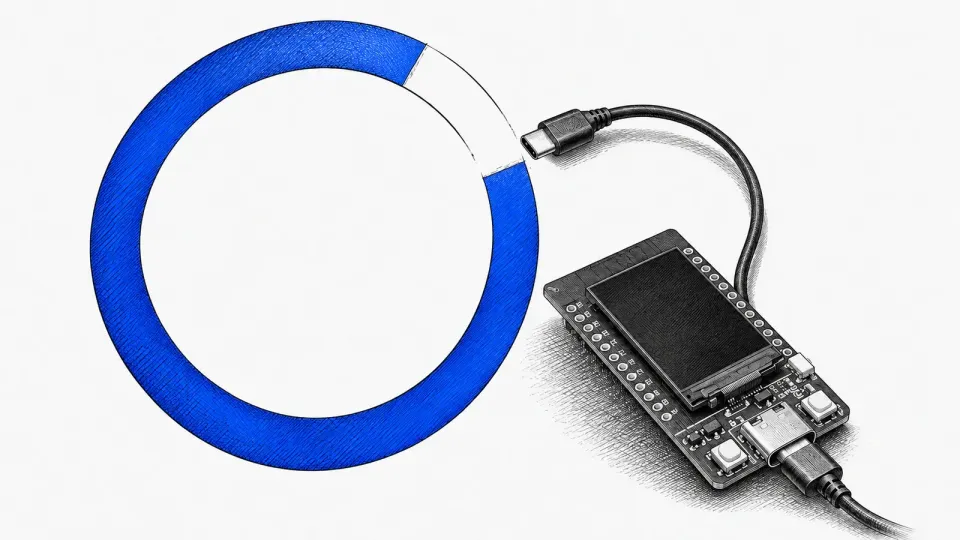
If your “NerdMiner” stops at 80%, check whether it's running NMMiner before resetting it. For an NMMiner screen saying waiting for pool response, reopen configuration and check the complete pool address, pool password and your public Bitcoin receiving address. Save and allow the automatic restart; move to a board-specific firmware update only after those checks, because the same progress indicator has appeared in several different failure reports.
Identify what is stuck at 80%
NMMiner and the original NerdMiner_v2 are separate firmware projects that can run on similar ESP32 boards. The case or seller's product name doesn't settle which instructions apply. Record the firmware name, version, board model and exact message alongside 80%. If you're using original NerdMiner_v2 and getting no block templates, use the original-firmware connection checks instead.
I'd preserve that information before changing anything. An 80% boot screen, a browser upload stopping at 80% and a USB flasher failing to connect need different checks.
The configuration steps below address the miner's startup screen. If the percentage appears in a browser's firmware-upload progress instead, follow that flasher's error and recovery instructions for the exact board. If the installed version isn't accessible, record it as unknown and use the board markings or seller's records to establish the hardware; don't infer a firmware build from the case.
| What you see | Start here |
|---|---|
| Miner's startup screen says waiting for pool response | Check NMMiner's primary and fallback pool settings below. |
| Miner returns to its setup hotspot | Check the saved Wi-Fi name and password before changing the pool. |
| Web flasher says Couldn't sync to ESP | Check USB data connection and the identified board's bootloader procedure. Pool edits won't repair serial communication. |
| Screen becomes blank or incorrectly oriented after flashing | Recheck the exact board/display build with its maker. Don't cycle through similar board names. |
Reopen configuration without clearing saved status
The NMMiner button instructions distinguish single-button and dual-button boards. On a single-button board, long-press BOOT to enter configuration. On a dual-button board, long-press USER. A long BOOT press on that dual-button mapping clears stored status when the feature is enabled, so don't borrow a reset sequence from a different model. Touchscreen and seller-specific models need their own control instructions.
- Enter configuration using the mapping for your board. Join the miner's documented open setup network,
nmap-2.4g. - Open the configuration page. If it doesn't appear automatically, enter
192.168.4.1in your browser while connected to that setup network. - Record the existing primary and fallback pool settings and payout addresses before editing. Keep Wi-Fi credentials and any activation information private.
The project's configuration sequence documents this hotspot and local page. That setup connection doesn't require internet access. Reconnect your phone or computer to its usual network after configuration.
Check both sets of pool fields
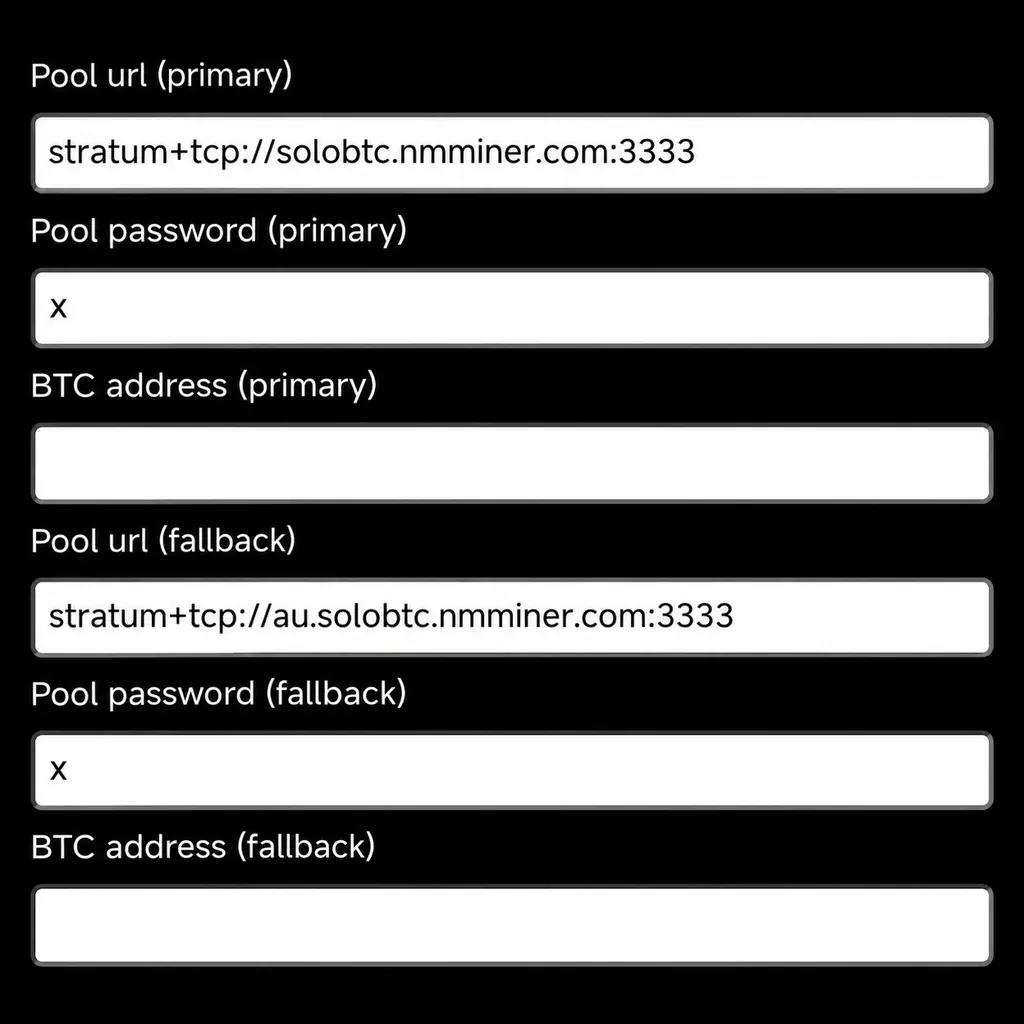
NMMiner's documented form uses a complete Stratum URI, including protocol and port. That differs from original NerdMiner forms with separate hostname and port inputs. A pool's HTTPS dashboard address doesn't belong in this field.
The project's pool configuration table lists these NMMiner Solo connections. They're concrete documented options for checking a configuration, rather than a reliability ranking:
| Setting | Primary example | Fallback example |
|---|---|---|
| Pool URL | stratum+tcp://solobtc.nmminer.com:3333 | stratum+tcp://au.solobtc.nmminer.com:3333 |
| Pool password | x | x |
| BTC address | Your own public Bitcoin receiving address, with a worker suffix only if the operator's instructions call for one. | |
Keep each pool's URI, password and address together. The documented mining settings keep separate primary and secondary values. Before any connection test, make sure both payout addresses belong to you. Then change one connection setting, save and observe before another diagnostic change. When replacing a pool URL, use the complete matching URI rather than mixing a hostname and port from different services.
Use the Bitcoin receive screen in a wallet you control, and confirm the pool accepts that address format. A pool's password field is separate from your wallet password. Never enter a seed phrase or private key, generate a new paper wallet just to diagnose this screen, or copy a video's payout address. If an address is rejected, preserve the actual rejection message and ask the operator which format it supports.
For another pool, check its current micro-miner support and complete connection settings. The pool-selection explanation covers why an ordinary ASIC endpoint can be unsuitable; its original-NerdMiner field format shouldn't be copied into NMMiner unchanged. Old screenshots and comments can retain endpoints that have since changed.
Save, let it restart and check the result
After clicking Save, allow the documented 10–15 seconds for completion. Don't manually reset during that interval: NMMiner's instructions say it restarts automatically.
Look for the startup screen giving way to mining, an active pool connection and work accepted under your own address. A lit screen or local hashrate alone doesn't establish pool acceptance. If the device starts using fallback, record which pool is active; reaching the mining screen doesn't by itself establish that the primary connection is repaired.
When the same settings still stop at the pool-response stage, a permitted second network can help narrow the fault. Keep the firmware and pool details unchanged for that comparison. If it works there, investigate the first network's DNS or outbound access to the pool's hostname and port. Don't disable the firewall wholesale or expose the miner with an incoming port-forward.
Use the version history to decide whether to update
There are real firmware fixes behind some 80% reports. NMMiner's v1.8.24 release notes name a bootup-at-80% fix, and v1.8.25 lists both “Miner stuck at 80%” and fallback-pool switching changes. The later v2.0.05 notes describe a different connection bug: the availability check ignored the pool password, preventing a return from fallback to primary.
Those notes don't establish one cure for every device showing 80%. In issue 142's recovery reports, one user reports successful startup on 1.8.28 after resolving flashing trouble, while others report 80% on that same version. Board selection and USB-sync failures also appear in the discussion. These are individual outcomes, not a measured update success rate.
I'd update an identified, supported board when corrected settings still fail and the release history addresses its symptoms. Before writing firmware, privately save the configuration, installed version and activation details. Use the official NMMiner flasher in Chrome or Edge and select the exact supported board. Review any erase operation before proceeding because saved settings can be lost. Original NerdMiner's flasher, binary offsets and reset instructions aren't substitutes.
If the exact board or display variant is unclear, ask the seller before flashing. The board-identification and recoverable-update checks explain what to record. For a serial-sync error, start with a known USB data cable, the connected device's port and the board maker's bootloader instructions. Stop if the hardware cannot be identified; choosing a random COM port or trying neighboring firmware images adds another fault.
For support, provide the board markings, firmware version, exact startup or flasher message, pool hostname and port, and the result of each single change. Redact Wi-Fi passwords, activation codes and unnecessary device identifiers from screenshots and logs. That record gives the seller or project something more useful than “stuck at 80%”; the mining hub connects the remaining setup, pool and firmware tasks.