 Chain Bridge

Contents
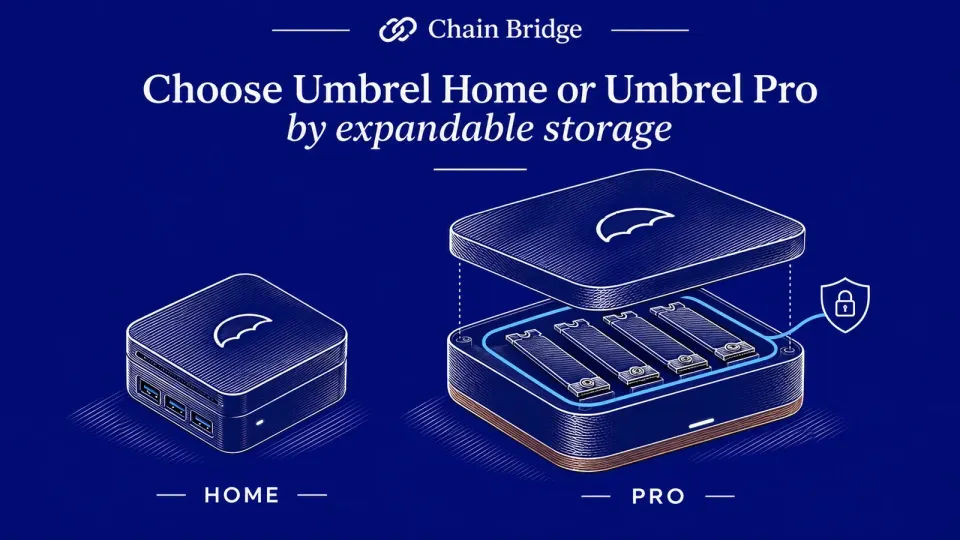
I'd choose Umbrel Home for a compact, ready-built node and home server when one internal SSD covers the workload. Choose Umbrel Pro when you need several internal SSDs, protection against a single drive failure or faster wired networking. Both have 16 GB of memory, so buying Pro won't by itself solve a RAM shortage.
The important price is the configuration you can order with the storage you need. Home includes an SSD; the least expensive Pro configuration doesn't. For Pro, decide on protected capacity before comparing totals.
Compare the differences that change the purchase
Scroll the table sideways on a narrow screen. You can also focus it and scroll with the keyboard.
| Requirement | Umbrel Home | Umbrel Pro |
|---|---|---|
| Processor | Intel N150, four cores, up to 3.6 GHz | Intel Core i3-N300, eight cores, up to 3.8 GHz |
| Memory | 16 GB | 16 GB |
| Internal data storage | One NVMe SSD; 1 TB, 2 TB and 4 TB models, subject to stock | Four M.2 2280 NVMe slots; up to 32 TB raw capacity, plus 64 GB onboard for umbrelOS |
| Drive-failure protection | No internal multi-drive FailSafe configuration | FailSafe with at least two SSDs; usable capacity is lower than raw capacity |
| Built-in Ethernet | 1 Gbps | 2.5 Gbps |
| USB connections | Three USB-A ports, USB 3.0 | Two USB-C ports, USB 3.2 Gen 2 |
These are the current hardware configurations in the official Home and Pro comparison. The extra CPU cores don't establish that an app, Bitcoin synchronization or a file transfer will run twice as fast. A faster Ethernet port helps only when the client, network path and storage can use it; it doesn't increase your internet connection's speed.
For a Bitcoin node with a few supporting apps, I wouldn't pay the Pro premium just to get the word “Pro.” Write down the data you intend to retain, the apps that run together and the storage growth you expect. If you're still choosing between a prebuilt box and a computer you already own, start with the node hardware choices for your workload.
Price a configuration that's available
The US Home configurator marks both the 512 GB and 1 TB models as sold out. Its $449.10 sale headline, reduced from $499, therefore isn't the price of an available unit. Umbrel advertises the 10% sale until December 1. Compare these US configurations:
| Configuration | Sale total (USD) | Storage supplied |
|---|---|---|
| Home, 1 TB | Sold out | One 1 TB SSD |
| Home, 2 TB | $629.10 | One 2 TB SSD |
| Home, 4 TB | $854.10 | One 4 TB SSD |
| Pro, without SSDs | $629.10 | Buy your own data SSDs |
| Pro, 2 TB | $899.10 | One 2 TB SSD; three slots empty |
| Pro, 4 TB | $1,169.10 | Two 2 TB SSDs; two slots empty |
| Pro, 8 TB | $1,709.10 | Four 2 TB SSDs; no slots empty |
The Pro storage selector adds $270, $540 or $1,080 to the bare unit for those preinstalled configurations during the sale. A supplied-SSD Pro costs $270 more than Home at 2 TB and $315 more at 4 TB. The 64 GB onboard storage is for umbrelOS; don't budget it as your photo library or blockchain drive. Compare the supplied-SSD premium with compatible drives you can buy separately, including their warranty and endurance specifications.
With United States selected, both order panels display free shipping, taxes included and delivery in 5–8 days. Confirm the selected model, availability, delivery destination and final total before paying. Add backup storage to the budget, price any paid app service or remote model separately, and read the applicable return and warranty terms. Home's specifications list a one-year limited warranty; that doesn't establish the terms of a Pro purchase or an optional protection plan.
A single 2 TB Pro SSD also gives you no multi-drive protection. The useful comparison might be a Home with a separate backup versus a Pro with several SSDs and a separate backup, rather than two machines with the same advertised number of terabytes.
Buy usable capacity and decide on FailSafe early
Pro accepts M.2 2280 NVMe SSDs without attached heatsinks, up to 8 TB per drive. M.2 SATA SSDs aren't compatible. The enclosure's lid provides the intended thermal contact, so check the protocol, length and physical clearance before ordering.
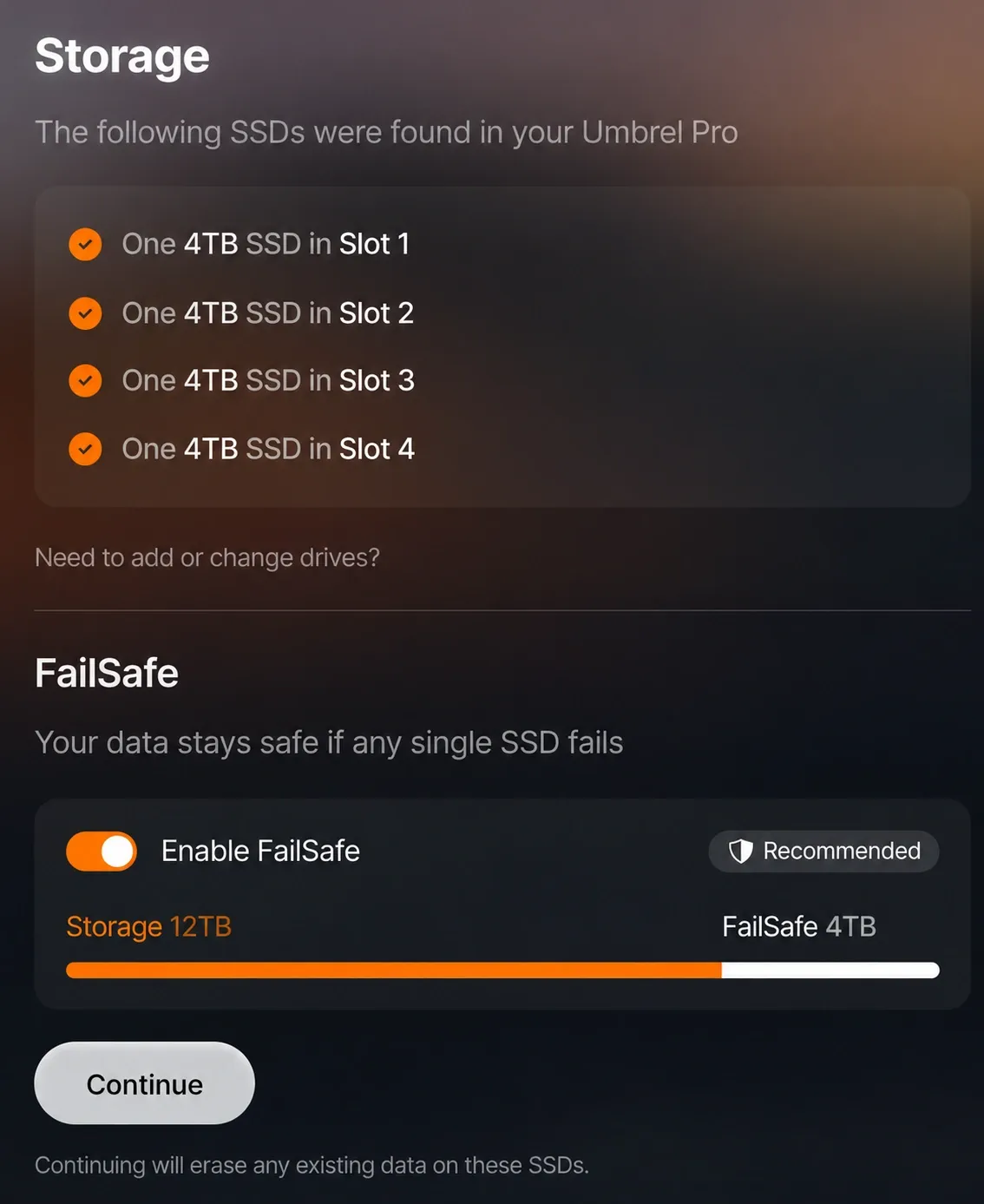
With equal-size SSDs, FailSafe reserves one drive's worth of capacity for recovery information. Four 4 TB drives therefore provide roughly 12 TB of nominal data capacity before filesystem overhead, rather than 16 TB. The supplied 8 TB configuration uses four 2 TB drives, so the corresponding calculation is roughly 6 TB with FailSafe enabled. At the maximum four-drive configuration, four 8 TB SSDs give 32 TB raw or roughly 24 TB with FailSafe, before overhead. Mixed-size SSDs can waste capacity because each is limited by the smallest drive.
The setup panel below shows the four-drive example. Continuing storage setup erases existing data on the selected SSDs. Copy anything you need elsewhere before adding a drive to the new server.
Select Enlarge image to read the details.
There's a timing constraint in the current storage-management instructions: with one SSD, the server starts in Full Storage mode. You can enable FailSafe when adding the second SSD. Enabling it after several SSDs are already in Full Storage mode requires a backup, factory reset and restore. Plan this before filling the machine.
Full Storage combines the drives for maximum capacity, but a failed drive can lose the entire pool. FailSafe protects against a single drive failure; it doesn't protect against deletion, theft or damage to the whole server. Keep a separate backup in either mode. For replacements, follow Storage Manager's Swap workflow, including its shutdown and rebuild instructions, rather than assuming a magnetic lid makes the SSDs safe to remove while running.
Check the bottleneck before upgrading
Mike Rockwell's two-year report on the original Umbrel Home describes nearly twenty apps and identifies 16 GB of memory as its most pressing hardware limitation. His unit was purchased in May 2024 and had 2 TB of storage. That's a useful account of a mixed self-hosting workload, rather than a throughput measurement of the current Home or Pro.
His storage concern was concrete too: an additional photo library would compete with the data already on the machine. I'd separate that capacity problem from the memory problem. Pro's extra internal drives address storage growth; its unchanged 16 GB memory specification doesn't establish relief for a workload already running out of RAM.
On an existing server, use Live Usage to identify storage, memory and CPU pressure. Stop apps you don't need running continuously before assuming the whole machine is too small. Bitcoin Node can use substantial CPU during initial synchronization, while a slow remote connection can make the interface feel slow without a CPU shortage.
Choose a local AI workload by the model's memory needs and supported acceleration. An AI agent that calls a remote model and an LLM running locally place different demands on the server. Neither the app catalog nor the number of CPU cores gives you a model's usable response speed. The published owner report doesn't support a current Home-versus-Pro speed ratio, power average or synchronization-time promise.
Pay for hardware that supports the workflow
Both appliances run umbrelOS. The same OS features and updates are also available on DIY hardware, with hardware-dependent capabilities. There isn't a Pro-only paid software tier. Before ordering either appliance, check that the exact app package and settings you need are available. Extra drive slots won't fix an unsupported app workflow. A supported machine with multiple internal drives can provide Storage Manager and FailSafe without being an Umbrel-branded appliance.
A large HDD library is a reason to compare hardware with native SATA bays before choosing an all-NVMe Pro. The OS supporting SATA drives doesn't give the Pro enclosure SATA drive bays. Home and Pro make more sense when their physical storage design fits the library you intend to keep.
External USB storage is another option, but check its role. Current external-storage support includes app access and moving an app to an ext4 drive. Apps moved externally aren't included in umbrelOS Backups. An older review's statement that apps can't use external storage doesn't describe those current choices, while an external enclosure still doesn't become part of Pro's internal FailSafe pool.
For local access, Ethernet and a browser on the same network provide the documented setup route. If your present server won't open, work through the hostname and direct-IP checks before buying replacement hardware. Remote access needs its own configuration; the Tailscale route requires installing the app.
Budget the machine, its data SSDs, independent backups and electricity. CPU TDP is a processor specification, so it can't substitute for measured wall power of the complete server. A backup plan also needs to protect against losing the server's physical location, rather than keeping every copy beside it.
Move a working Home without risking the only copy
For a Home-to-Pro upgrade, the documented route is backup and restore. Migration Assistant's direct-drive procedure is for a Raspberry Pi source; it isn't the general Home-to-Pro route. Create the backup on a separate destination and set up the new machine's storage deliberately. On Pro, complete onboarding with a temporary account first, then restore from Settings > Backups > Restore.
For Umbrel's encrypted backups, plan destination free space of at least twice the backup size. Check the backup's scope and retain its encryption password. Restoring replaces the destination's current account, apps and data, and excluded data won't reappear just because the new machine has more storage. Open representative recovered files and app records, then reconnect the clients that depend on the server before retiring the old device.
After migrating an app that manages funds, don't run its outdated copy on the old machine. Umbrel specifically warns that doing this with Lightning Node can lose funds. Keep the old data available for recovery without running a stale financial app alongside the restored instance.
My default is Home when a single internal SSD and an independent backup solve the job. I'd buy Pro for a planned multi-drive pool or a network workload that can use its faster connection, with the complete SSD and backup cost already written down. The node and home-server library provides the next setup tasks once that decision is made.