 Chain Bridge

Contents
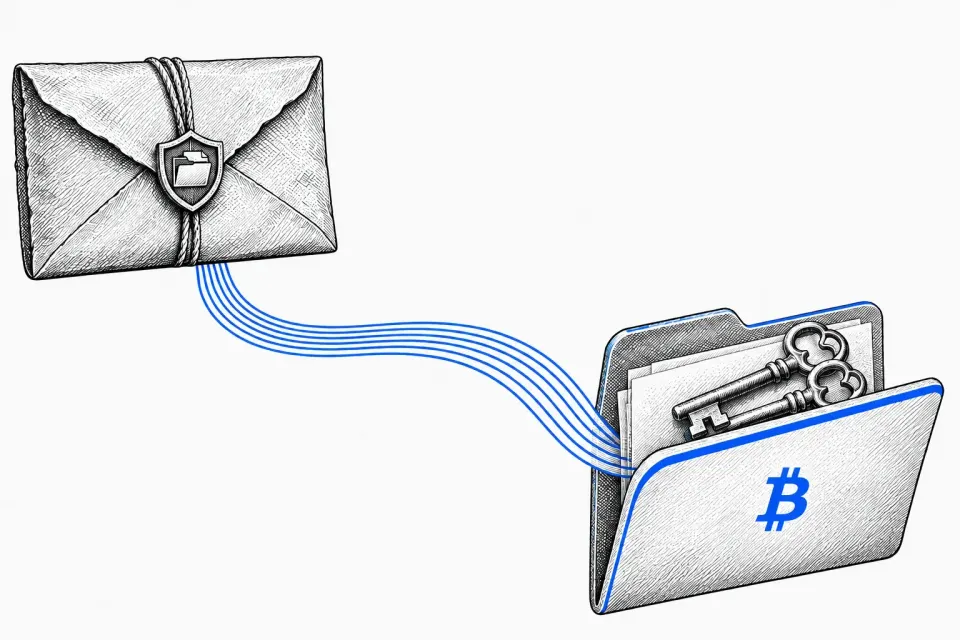
To restore a Bitcoin Core wallet, preserve the original backup and work from a copy. For a descriptor-wallet backup, use File → Restore Wallet… and give the restored wallet a fresh name. A legacy wallet file needs File → Migrate Wallet → Restore and Migrate Wallet File…; neither route requires replacing an existing wallet.dat.
I’d keep the original disconnected while checking the restored copy. Recovery has separate milestones: the file loads, Core finds its transaction history, and the wallet has the keys and passphrase needed to spend. A success message alone doesn’t establish all of them.
Identify the backup before opening it
Start with a wallet-file backup you own, ideally one made through Core’s Backup Wallet function. A file called wallet.dat can be a wallet database, but its name doesn’t prove that it belongs to the expected wallet or contains private keys. Renaming an unrelated file won’t make it a usable backup.
A receiving address, transaction ID or copy of the blockchain cannot replace missing private keys. An encryption passphrase protects keys already in a wallet file; the passphrase by itself cannot recreate them. The wallet encryption guidance also explains that transaction metadata remains visible despite encryption. Keep the file private even when it’s password-protected.
If you have recovery words from another wallet, first identify the application that issued them. The standard Core wallet flow doesn’t provide a word-based recovery phrase. Don’t enter words into a random Core “recovery” website, and don’t upload a wallet file, passphrase or private descriptor to a support form.
This procedure starts with an intact file. A deleted backup, failing drive or corrupt database needs a different recovery decision. Preserve the original material rather than repeatedly modifying it with repair tools. Creating a new empty wallet won’t recover the old wallet’s keys.
Keep a separate original and prepare the node
Make a working copy of the saved backup on storage you control, then put the original somewhere safe. Preserve any existing wallets on the destination computer too. For a wallet still running elsewhere, make a coordinated backup through Core instead of copying its live database: the data-file guidance warns that a direct copy while the database is active can be unusable.
Use an authentic, maintained Bitcoin Core release on a computer you trust. Malware can steal wallet data or capture an encryption passphrase. If you need to prepare the node, follow the Bitcoin node setup steps; the hardware guide covers storage planning. Restoring a wallet doesn’t remove the node’s blockchain requirements.
Do not migrate a wallet with Core 30.0 or 30.1. The project’s migration failure advisory describes a rare failure involving a default unnamed wallet that could delete unrelated files in the wallet directory. The steps below use the English 32.1 controls. Older instructions and operating-system styling can look different.
Choose ordinary restore or legacy migration
A descriptor wallet records the scripts and key information Core needs in its newer wallet format. A legacy wallet uses the older format. The Core 30.0 wallet changes removed ordinary loading of legacy wallets, so an old backup may need conversion before it can be used.
Choose Restore Wallet… for a descriptor-wallet backup. For a known legacy backup, choose Restore and Migrate Wallet File… inside Migrate Wallet. That submenu also lists existing wallets; selecting an existing wallet is a different operation from restoring a backup file. The filename extension alone doesn’t distinguish legacy and descriptor wallets.

If ordinary restore reports a legacy-format limitation, preserve the error and use the legacy branch below. For a different error, don’t assume migration is the cure. I’d stop at that distinction because conversion won’t repair every damaged or unrelated file.
Restore a descriptor-wallet backup under a new name
Keep existing wallets separate by restoring under a new name. In the 32.1 restore flow, you choose the backup file before naming the recovered wallet:
- Open File → Restore Wallet….
- In Load Wallet Backup, select your working backup copy. The file picker offers Wallet Data (*.dat *.wallet). Use All Files (*) if your known backup has another extension.
- In Restore Wallet, enter a fresh, nonempty Wallet Name, such as
recovered-personal. This is a local label, not a new password. - Confirm and let the restore operation finish. Read any error or warning before continuing; then check the selected wallet in the application.
Core copies the backup into the wallet directory and attempts to load it. Its restore implementation refuses an existing destination wallet database. If the name is already in use, choose another name. Don’t delete a working wallet to clear the collision or drag the backup over its file.
Restoring doesn’t reset encryption. An encrypted local-key wallet still needs its existing passphrase for spending. Core can display transaction information while private keys remain locked, so visible history is not a password check.
Restore and convert a legacy backup
Keep the independent original before starting this branch. Migration creates a newer wallet representation and may produce more than one wallet, so plan to check and back up the outputs rather than assuming a single familiar name tells the whole story.
- Choose File → Migrate Wallet → Restore and Migrate Wallet File….
- In Restore and Migrate Wallet Backup, select the working legacy backup. This picker uses a
*.datfilter. If your known legacy backup ends in.bak, make an additional working copy named, for example,legacy-restore-copy.datso it appears. The new filename doesn’t convert its format. Preserve the original filename and extension on the archived copy. - Enter a fresh Wallet Name in Restore and Migrate Wallet.
- Read the Restore and Migrate wallet confirmation. It explains that the file will be copied, the original won’t be modified, conversion may create multiple descriptor wallets, and new backups will be needed. Choose Yes only after checking the selected file and destination name.
- Enter the existing passphrase if Core requests it for the encrypted legacy wallet. Allow the operation to finish and read its result.
The backup migration flow restores a copy before converting it. The checkbox Load wallet after migration, shown in the separate existing-wallet migration dialog, isn’t part of this backup-file confirmation. Don’t hunt for it as a missing step here.
Migration can separate watch-only scripts and other solvable scripts into wallets with _watchonly and _solvables suffixes. A source containing only watch-only scripts may produce just the watch-only wallet. Core also creates a pre-migration backup ending in .legacy.bak. The migration guidance calls the conversion a best-effort process: unusual script arrangements can need further investigation. Preserve the original even after a successful conversion.
Wait for history before judging the balance
The node catching up with the network and the wallet rescanning historical blocks are different tasks. A restored wallet can need a scan to recognize its transactions. The restore documentation explicitly includes rescan behavior; it doesn’t promise a universal completion time.
A pruned node may no longer have the historical blocks the wallet needs. Migration or loading can fail for that reason, as the 32.1 migration changes explain. Turning pruning off doesn’t instantly put deleted blocks back. Keep the backup intact and resolve the missing block-data requirement before repeatedly restoring the same file.
After loading and scanning finish, select the intended wallet and confirm the Bitcoin network. Compare a known old receiving address or transaction with your own records locally. Don’t compare a newly generated address with an old one and conclude that the backup is wrong merely because they differ.
Missing labels are a separate clue from missing funds: a blockchain scan can recover transaction history but cannot reconstruct private metadata added after the backup. Very old non-HD wallets can also lack keys created after the backup. The backup-frequency explanation describes that limit. Keep other dated copies available instead of discarding them after the first file loads.
A watch-only wallet can show funds without containing the keys to spend them. A locked encrypted wallet needs its passphrase. If Core reports a format, database or scan error, retain its exact text together with your Core version and network. Remove paths and wallet identifiers before sharing an error publicly, and keep wallet files and secrets out of the report.
Save fresh backups of the recovered wallets
After checking the restored wallet, select it and use File → Backup Wallet… to create a new backup with a distinct filename. Check that the operation succeeds and the destination contains the file before disconnecting the backup drive. Back up each relevant migration output, including a separate watch-only wallet if you need its records. Core’s migration guidance specifically requires new backups after conversion.
I’d record the wallet name, network and backup date beside the archive, with the passphrase stored separately. Keep the original and useful older copies. If the old computer or backup was exposed to malware or another person, restoring the file doesn’t revoke their copy of the keys; resolve that compromise before deciding to use the recovered wallet for future funds.
For the next node task, use the Bitcoin node guides. If the file is present but the passphrase is forgotten, password recovery is a separate problem. Repeating Restore Wallet won’t remove encryption.