 Chain Bridge

Contents
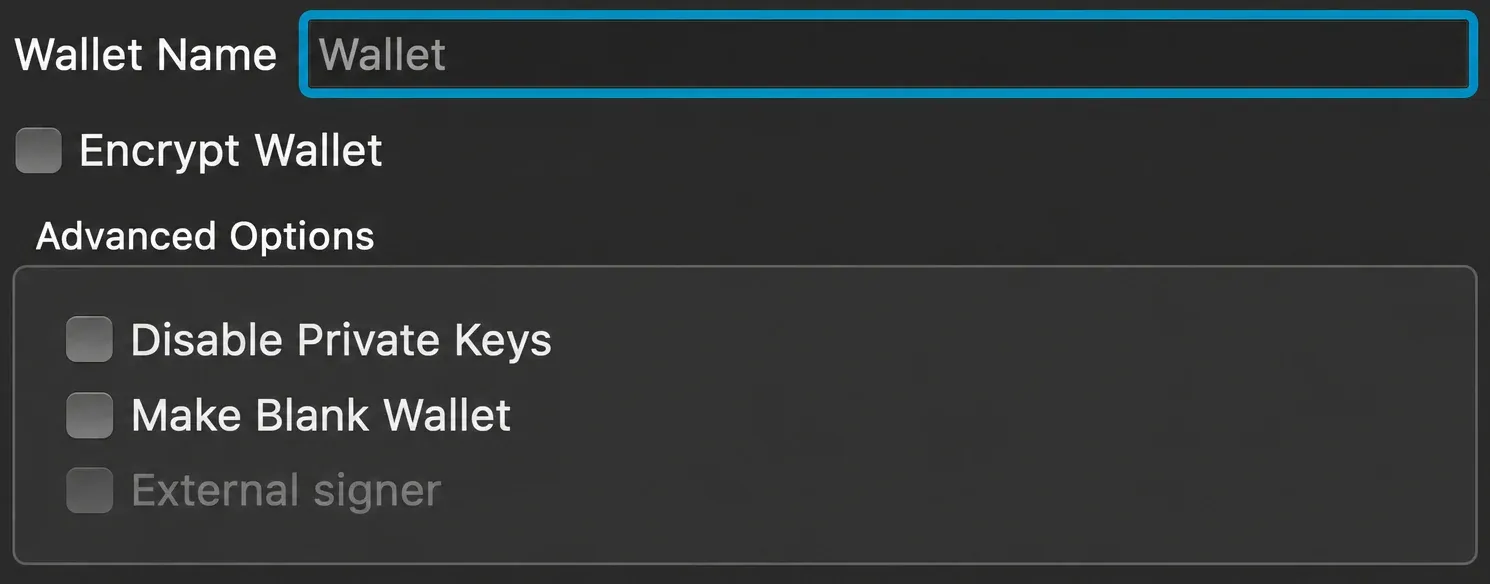
To create a Bitcoin Core wallet, open File → Create Wallet…, give it a name and select Encrypt Wallet. For an ordinary wallet that keeps its private keys on this computer, leave the advanced options off. After creation, save a backup through File → Backup Wallet… before receiving funds.
I’d keep the new wallet empty until that backup is safely stored and the passphrase is recorded separately. A running node and a receiving address are useful milestones, but neither gives you a recovery copy of your keys.
Your node and your wallet have different jobs
Bitcoin Core validates the Bitcoin blockchain and can also manage wallets. The node checks transactions; a wallet manages the keys and records needed to receive and spend. You can run the node without creating a wallet. Current Core doesn’t automatically create a default wallet, so an empty wallet selector after installation doesn’t mean funds have disappeared. The project’s wallet management guide describes this separation and the creation flow.
This guide assumes you’ve installed an authentic Bitcoin Core release. If the node itself isn’t ready, start with setting up a Bitcoin node; the node hardware guide covers the computer and storage choices. Wallet creation won’t fix a node’s storage or synchronization problems.
Also check the product name. The Core mobile app from Ava Labs is a different product. Its account, staking and recovery features aren’t Bitcoin Core desktop features. Follow the steps below in the Bitcoin Core desktop application.
Choose a wallet mode before creating keys
An ordinary local-key Core wallet can spend from this computer once unlocked. That makes the computer’s security part of the decision. Encryption protects private keys in the wallet file; it doesn’t hide the wallet’s transaction metadata or protect an unlocked session from malware. A keylogger can capture a passphrase. These limits are explicit in the project’s wallet encryption guidance.
I wouldn’t move keys out of a separate cold-storage setup merely because a node is now running. Connecting a supported external signer or monitoring addresses without their private keys is a different arrangement. Choose it deliberately rather than trying to repair the wrong mode after funding.
For the local-key setup here, leave these advanced options unchecked. The current creation dialog uses these labels:
- Disable Private Keys creates a wallet that cannot hold private keys. It can monitor imported wallet information, but cannot spend on its own.
- Make Blank Wallet starts without keys or scripts. It’s intended for a setup that will supply them later.
- External signer is for a separately configured signing device. Availability depends on the build and signer configuration; selecting the option alone doesn’t connect every hardware wallet.
Create and encrypt the new wallet
The menu and control names below follow the English Bitcoin Core 32.1 interface. Window styling can differ by operating system.
- Open File → Create Wallet…, or use Create a new wallet if the empty-wallet screen offers it.
- Enter a distinct wallet name, such as
personal-btc. The name identifies this wallet; it isn’t a recovery secret. - Select Encrypt Wallet. Leave the advanced options above off for this local-key setup.
- Click Create, then enter and confirm a strong, unique passphrase when prompted. Keep a durable record somewhere separate from the wallet backup.
A lost encryption passphrase has no account-reset route. If your only usable keys are in the encrypted wallet, losing the passphrase can make the funds inaccessible. Conversely, knowing the passphrase without possessing the wallet’s key data won’t recreate the wallet. Protect both parts.
If you already created an unencrypted wallet, use Settings → Encrypt Wallet… and make a fresh backup afterward. The documented encryption behavior includes generating new active key material, which is why an older backup must not be treated as the current recovery copy. Keep earlier copies safely; don’t destroy your only backup while replacing it.
Back up the correct wallet through Core
Select the new wallet in the Wallet dropdown before backing it up. With several wallets open, the same application window can be showing a different wallet from the one you intend to protect. If a wallet isn’t loaded, use File → Open Wallet to select it first.
Choose File → Backup Wallet…, then save to a location you control with a distinct filename, for example personal-btc-encrypted-backup.dat. A removable drive can hold an offline copy; disconnect it after the backup has completed. Look for Backup Successful and check that the selected destination contains the file. An error or an empty destination is a reason to stop before funding.
Use Core’s backup function rather than dragging the live wallet.dat file out of its directory. Core coordinates a consistent copy while the wallet is in use. The project’s data-file documentation warns that copying an active wallet database directly can produce an unusable backup. The blockchain’s blocks and chainstate directories are not substitutes for your wallet keys.
I’d keep an additional offline copy in a separate physical location, because a second file beside the original won’t help after the computer and its drive are lost together. Store the passphrase separately from those files. Record the wallet name, Bitcoin network and backup date so that a future recovery doesn’t depend on guessing which copy belongs to which wallet. Don’t put the passphrase in the filename.
Make a new backup immediately after encryption or a passphrase change. Changes to key material, including imports, also warrant a fresh recovery copy. Keep backups current when labels or other wallet records matter: the blockchain can’t reconstruct your private notes. The wallet backup guidance explains both the backup route and these update conditions.
A saved file and a success message establish that the backup operation completed; they don’t prove you can recover from it. Before relying on the wallet for a substantial balance, check recovery using a copy in a separate, controlled environment. Preserve the original and your working wallet throughout. Restoring over the only live copy is not a backup test.
Don’t expect a seed phrase from this creation flow
The standard Bitcoin Core GUI flow doesn’t give you a 12- or 24-word recovery phrase. Core developer Pieter Wuille explains that Core doesn’t support seed phrases; the fact that a wallet derives keys internally doesn’t turn its encryption passphrase into a mnemonic. For this setup, preserve the wallet-file backup and the passphrase needed to unlock it.
Don’t enter either into a website offering to “convert” a Core wallet into seed words. Private-descriptor exports and imports have their own handling requirements. They aren’t a reason to skip the ordinary backup while creating this wallet.
For a named wallet, Core normally keeps wallet.dat under wallets/<wallet-name>/ inside its actual data directory. A custom data directory or wallet directory changes that location. Looking only in an assumed default folder can miss the wallet, and finding blockchain files doesn’t establish that a wallet was ever created there. Use the application’s wallet selector and coordinated backup route rather than moving files to make the directory look right.
Check readiness before the first payment
Wait until the node has caught up with the network before relying on the displayed balance. Confirm that you’re using Bitcoin mainnet and the intended wallet. A new empty wallet won’t recover an old wallet’s funds, and a watch-only wallet won’t acquire signing keys by receiving a payment.
On Receive, enter an optional label and click Create new receiving address. The amount can be left blank. The current Receive form makes the label, amount and message optional; these fields don’t replace checking the destination. For later payments, request a new address each time to reduce address reuse and the payment links it exposes.
Verify the complete receiving address in Core against the destination in the sending service. Send native BTC over the Bitcoin network. A wrapped token on another chain, or an address copied from the unrelated Core app, is a different route. If the sender’s network choice doesn’t clearly match, pause rather than treating a low fee as evidence of compatibility.
For a first transfer, I’d use a small amount that’s sensible after the sender’s withdrawal minimum and fees. Check the transaction in the intended wallet and let it confirm before sending more. A sender’s receipt alone doesn’t establish that this wallet has recognized the payment, and even a confirmed payment doesn’t prove backup recovery.
If backup failed, the wallet mode is wrong or synchronization is incomplete, resolve that condition before adding funds. Keep existing wallet files intact while investigating. For the next node operation, use the Bitcoin node guides; creation of a fresh wallet is separate from restoring an existing one or recovering a forgotten passphrase.